
How to automatically forward Gmail to your Proton Mail
- Reading
- 4 mins
- Category
- Easy switch
Note: Gmail forwarding is a legacy feature that is gradually being replaced by Gmail connection. On top of receiving Gmail messages, Gmail connection lets you send emails from your Google address directly inside Proton Mail. If Gmail connection isn’t available to you yet, you can keep using Gmail forwarding.
If you’re switching from Gmail to Proton Mail, you may still receive new emails sent to your old Gmail address.
To make switching easier, you can set up automatic forwarding of your Gmail messages to your Proton Mail inbox in just a few clicks. This lets you get all your messages in one secure place.
Proton Mail will remove trackers from your Gmail messages and protect your data with zero-access encryption.
- How to set up automatic Gmail forwarding
- How to stop automatic Gmail forwarding
- Troubleshooting
- Automatic Gmail forwarding FAQs
How to set up automatic Gmail forwarding
- In the Proton Mail web app, click Settings → All settings → Import via Easy Switch.
- Select Google from the list of providers.
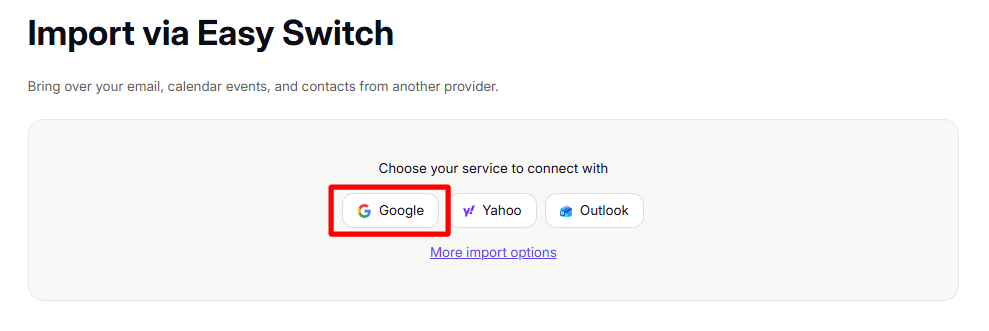
- This will bring up a pop-up window where you can log in to the Google Account from which you would like to set up forwarding. Enter your Gmail address and password.

- Check all the boxes in Google’s permission window, and click Continue.
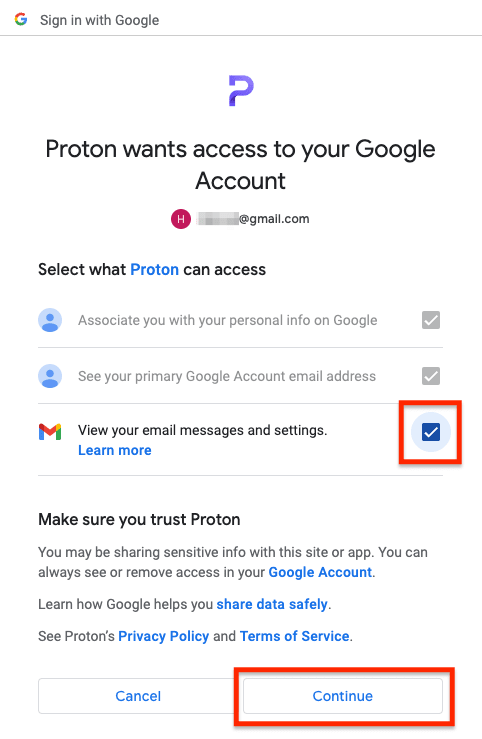
- You’ll see a message in Proton Mail confirming that forwarding will start.

How to stop automatic Gmail forwarding
- In the Proton Mail web app, click Settings → All settings → Import via Easy Switch.
- In the History section, click Delete forward next to the forwarding you would like to stop.

- Click the Remove button to confirm your choice.

Troubleshooting
Forwarding doesn’t seem to work anymore
If forwarding is paused, we’ll notify you via email. This can happen for a few reasons. For example, you may have accidentally removed permissions for Proton in your Google Account.
To resume the automatic forwarding of your emails:
- Sign in to your Proton Account at account.proton.me.
- Click Settings → All settings → Import via Easy Switch.
- Scroll down to the History section.
- Click Resume under Actions on the automatic forwarding that was paused.
I’m not receiving all messages received in Gmail
Easy Switch will only forward messages from Gmail’s Inbox folder. If you have set up a Gmail filter for emails to skip the Inbox, these will not be forwarded. Here’s how to fix this:
- Open your Gmail account.
- Go to Settings → See all settings.
- Select Filters and Blocked Addresses.
- Remove any filters that configured with the “Skip the Inbox (Archive it)” setting.
Messages sent to yourself (from your Gmail to the same Gmail) will not be forwarded.
Automatic Gmail forwarding FAQs
Are my Gmail messages encrypted when they’re forwarded to Proton Mail?
Your Gmail messages are encrypted when they arrive on our servers using zero-access encryption, just like your other emails.
Will spam be forwarded?
No, messages that land in your Gmail spam folder should not be forwarded to Proton Mail.
But sometimes Gmail flags messages as spam after you receive them in your inbox. In that case, they could be forwarded to Proton Mail.
What happens if I delete or archive a Gmail message in Proton Mail?
Actions taken on forwarded messages in your Proton Mail inbox won’t apply to your Gmail inbox.
Can I prevent receiving notifications for forwarded emails?
By default, you’ll be notified of all new incoming emails, including those from Gmail. You can set up a filter to put Gmail emails in a separate folder and disable notifications for this folder.
Can I block senders or use filters on forwarded emails?
Yes, you can use the same features as you would with your regular Proton Mail emails.
Does Google have access to my Proton Mail address?
Setting up email forwarding won’t reveal your Proton Mail address to Gmail. Google will only know that you used a Proton app to connect to your Google Account. Google doesn’t know where the emails are actually forwarded.
What is the difference between Gmail forwarding and Gmail connection?
Gmail connection has the same receiving features as Gmail forwarding, but it also lets you send emails from your Gmail address directly in Proton Mail. To use it, simply select your Gmail address in the Proton Mail composer.
Because sending is tied to one Proton Mail account, a Gmail account can only be connected to one Proton account at a time. If you need to forward emails from the same Gmail account to multiple Proton accounts, you can still use Gmail forwarding.
Gmail forwarding will gradually be replaced by Gmail connection.
I have Gmail forwarding enabled. Can I start using Gmail connection instead?
Yes. Just set up Gmail connection in your account settings, and you’ll be prompted to convert your Gmail forwarding setup. You can also import your Gmail messages, contacts, and calendars if you haven’t done it already.